 ViewGraph
SwiftUI ships primitives, not structure
Ask ten iOS teams to diagram their app and you'll get ten different diagrams. Some navigate directly from each screen. Some route everything through a coordinator object. Some organise by feature folder and never introduce a router at all. SwiftUI doesn't pick for you, and it doesn't record your choice in a way a new teammate can read.
The four patterns below cover most SwiftUI apps I've opened. They aren't mutually exclusive — a real app often mixes two or three — but naming them makes the differences visible.
Pattern 1 — Direct navigation
The screen owns its own destinations. It's the shortest path from "user taps" to "new screen appears," and it's where most projects start.
struct LibraryScreen: View {
    @State private var selectedBook: Book?

    var body: some View {
        NavigationStack {
            List(books) { book in
                Button(book.title) { selectedBook = book }
            }
            .navigationTitle("Library")
            .navigationDestination(item: $selectedBook) { book in
                BookDetailScreen(book: book)
            }
        }
    }
}
The connection LibraryScreen → BookDetailScreen is written in the view, in code, with a literal destination. That's the easy case for a tool: it can be read statically.
Pattern 2 — Router / coordinator
Once more than a couple of screens need to trigger navigation, teams often move it behind an object. The screen no longer knows what comes next; it asks the router.
@Observable
final class AppRouter {
    var path = NavigationPath()
    func show(_ route: Route) { path.append(route) }
}

struct RootView: View {
    @State private var router = AppRouter()

    var body: some View {
        NavigationStack(path: $router.path) {
            HomeScreen()
                .navigationDestination(for: Route.self) { route in
                    switch route {
                    case .profile(let id): ProfileScreen(id: id)
                    case .settings:        SettingsScreen()
                    }
                }
        }
        .environment(router)
    }
}
This is better engineering in many ways, and harder to read from the
outside. The destination isn't next to the trigger; it lives in one
switch, and the trigger is a call to
router.show(.settings) somewhere else entirely. The
structure exists, but it's spread across the router, the route enum,
and every call site.
Pattern 3 — Feature modules
As an app grows, the strongest signal is often the folder tree:
App/
├── Features/
│   ├── Library/
│   │   ├── LibraryScreen.swift
│   │   └── LibraryViewModel.swift
│   ├── Reader/
│   │   ├── ReaderScreen.swift
│   │   └── ReaderToolbar.swift
│   └── Settings/
│       └── SettingsScreen.swift
└── Shared/
    ├── Components/
    └── DesignSystem/
Folders communicate intent to humans, but they're invisible to the
type system: a LibraryScreen and a
ReaderScreen don't "know" they're in different
features. Nothing stops Reader from importing
Library's internals — and over time, something will.
When a component moves between sections, the folder tree updates but
the reuse relationships don't.
Pattern 4 — Reusable composition
Underneath navigation, every SwiftUI app is a composition tree. This is where the real structure of a screen lives:
struct DashboardScreen: View {
    @State private var viewModel = DashboardViewModel()

    var body: some View {
        ScrollView {
            VStack(spacing: 16) {
                HeaderView(title: viewModel.title)
                MetricGrid(metrics: viewModel.metrics)
                RecentActivityList(items: viewModel.recent)
            }
            .padding()
        }
        .task { await viewModel.load() }
    }
}
HeaderView, MetricGrid and
RecentActivityList are the interesting parts of this
screen. Replace one and you change every screen that uses it. Which
is exactly the question source browsing is bad at answering:
where else is HeaderView used?
The shape underneath all four
Regardless of which pattern a project chose, there is always the same underlying shape: screens reachable from one another through navigation, and components composed inside screens, some of them reused across many screens. Widgets are their own entry points. ViewGraph draws that shape directly.
It classifies nodes as screens, components or widgets; lays screens out by navigation level; draws connections for pushes, sheets and full-screen covers; and draws reuse edges between a component and the screens that use it. Sections are grouped so a feature folder still has a visible boundary even though the type system doesn't enforce one.
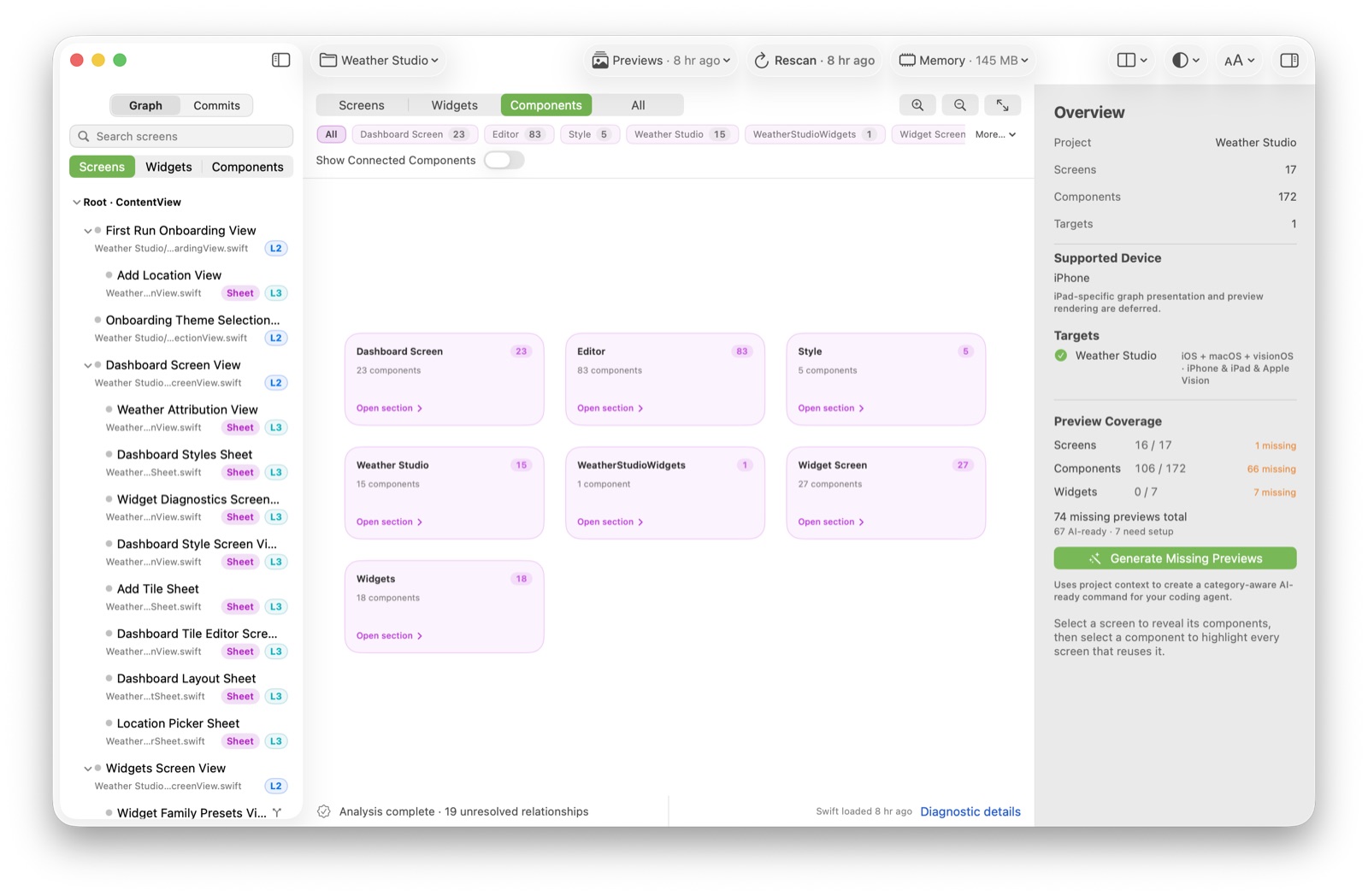
The useful part is that this view is the same whether the app used direct navigation, a router, or a mix. You stop needing to know the pattern before you can read the app.
Static analysis vs. runtime navigation
This is the part I want to be scrupulous about, because it's where a
structural tool can quietly mislead you. ViewGraph reads Swift source
with swift-syntax. It sees what it can prove from the
code, and it reports the rest as unresolved instead of inventing a
connection.
What it can reliably infer
- Literal navigation: a
NavigationLink, a.sheetor.fullScreenCoverwhose content is a concrete view. - Typed destinations: a
navigationDestination(for:)with a route type whose cases resolve to concrete screens. - Composition: a view's
bodyreferencing other view types, including across files. - The app root and widget entry points, from the app and widget declarations.
What it cannot reliably infer
- Data-driven destinations. If the path is built from a decoded deep link or a server response, the destination isn't in the source to read.
- String-based routing. A switch over a route string, or a registry keyed by name, hides the real destination from static analysis.
- Abstractions that erase types. A coordinator that hands navigation to a protocol, or returns
AnyViewchosen at runtime, loses the concrete edge. - Navigation outside SwiftUI. A
UIHostingControllerpushed by a UIKit navigation controller isn't part of the SwiftUI graph. - Conditional branches. Destinations behind a feature flag or a runtime check may resolve to several outputs, and the analyzer treats divergent branches conservatively.
The practical consequence is a division of labour: ViewGraph gives you the parts of the structure that are written down, and you spend your runtime exploration on the parts that aren't. It doesn't claim to know how your app behaves — only how it's built.
Draw your own app
Point ViewGraph at a SwiftUI project and it classifies screens, components and widgets, then lays out the connections it can prove — locally, on your Mac.